

Quick order
Add products by entering the article number and quantity. For example, if you want to order 6 rolls of article 7666, enter: 7666 6. If you want to add several articles, you can do so by pressing Enter, for example:
7666 6
4301 7
38702 10
Click Add to add the articles to your shopping list.
If you want to order wallpaper samples, add “s” before the article number (s7666 1).
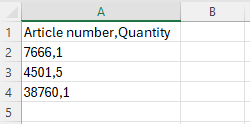
If you want to add several products from an imported CSV file, you can do that too, see the image below. Download a template using the Example CSV button to easily fill in what you want to order, and then upload it.
Custom-fit products/mural wallpapers cannot be added via Quick order.
Success! We'll email your catalog to {{ email }} as soon as it's ready.
Quick Order: Multi-Line or File Upload
Multi-line. Easily add your products with quantities pasting from a spreadsheet:
- Each product identifier (SKU or UPC) with quantity should be on a new line or separated by a comma (,) or a semicolon (;).
- Separate product identifiers (SKU or UPC) from quantity using either a space or a tab.
Example:
SKU123 10
SKU456 20
File Upload. Supported formats: spreadsheets (CSV, XLSX) and documents (PDF, JPEG, PNG). If you’re uploading a CSV or XLSX, the file should include at least two columns – one for product code (SKU or UPC) and one for quantity. The app uses names like these to find the right columns:
- for SKU: SKU, Part Number, Article Number, Artikelnr
- for UPC: UPC, Barcode, EAN, GTIN, EAN
- Line item note : Note, Line Item Note, Draft Order Note, Märkning
- for Quantity: Quantity, Qty, Antal
Quantities must be whole numbers only. When searching for products, prioritize using the selected identifier (SKU or UPC). If no matches are found, the other identifier will be searched instead.